Sending Events and Messages to Your Toby Customers
Once Toby the Tobacconist is set up for your store, you can use it to reach your Toby customers. Two tools do this, both right on the register:
- Send Event announces something coming up, like a cigar night, a brand rep visit or a holiday sale.
- Send Message sends a short note, like "New Opus X shipment just landed."
If you haven't connected Toby yet, start with Getting Your Anthropic API Key for Toby.
Finding It
On the main screen, tap Help in the left sidebar
Choose Toby, then Send Event or Send Message
The Toby menu only appears once Toby is turned on for your store. If you don't see it, give us a call. TORO asks for your PIN before either window opens.
Sending an Event
Type an Event Title. It's required and can be up to 200 characters.
Add a Description if you want to say more. It's optional.
The event is dated one week from today. This window doesn't currently let you pick a different date, so if your event is on another day, put the day and time in the title or description.
Fill in Location only if the event isn't at your shop. Leave it blank and Toby uses your store.
To include a picture, click Attach Image and choose a JPG, PNG or WebP file of 5 MB or less. The label beside the button changes from No image to Image uploaded once it's in.
Click Send to Toby Customers.
Sending a Message
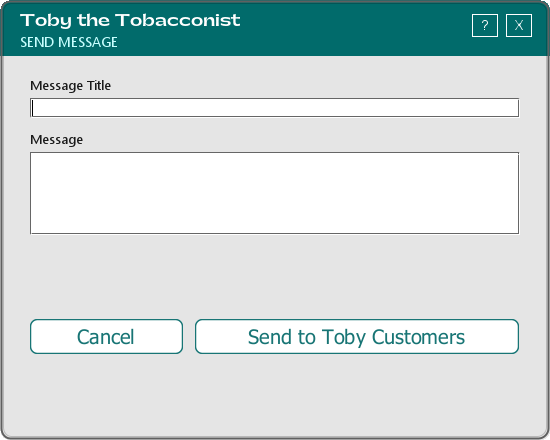
Type a Message Title (required, up to 200 characters)
Type your Message (required)
Click Send to Toby Customers
After You Click Send
The button changes to Sending..., and then you'll see either:
- "Event sent to your Toby customers!" (or "Message sent to your Toby customers!"), and the window closes. That means TORO has started sending it to Toby. It doesn't wait to hear back from Toby, so this message alone doesn't prove your customers got it.
- "Toby is not enabled. Check your Toby setup." Nothing was sent. Open Help > Toby > Set Up and make sure your store is connected.