Renaming Items in Bulk
Item names have a way of getting messy. A vendor spells a line three different ways, a spreadsheet import leaves "Maduro" as "Mad.", or two items end up with exactly the same name and your cashiers can't tell them apart. Fixing those one item at a time in Item Details is slow. The Item Name Editor puts every item name and short name in one list, so you can tidy them up together, including a find-and-replace across the whole list.
Every item has two names: its item name, and a short name of up to 18 characters that can print on receipts. Setting Up Your Receipt explains where each one is used.
Finding It
Open the Dashboard
Click the Items tab on the left, then click the Item Name Editor card. (Can't find it? Type "rename" in the search box at the top right.)
Reading the List
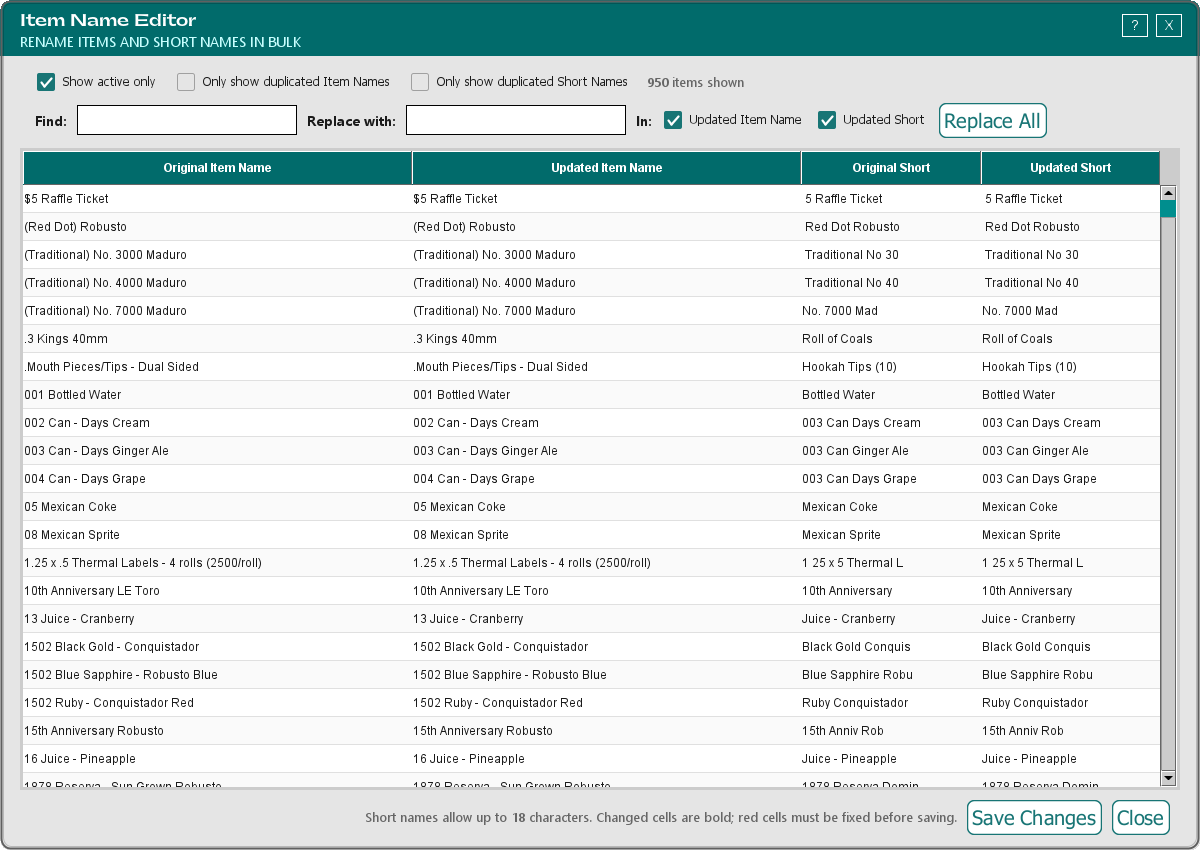
Each row is one item, with four columns:
- Original Item Name and Original Short: the names the item has now
- Updated Item Name and Updated Short: the names it will have when you save
You only type in the two Updated columns. The Original columns stay as they are until you save, so you can always see what you started with. The count at the top tells you how many items are showing.
The list shows the item's own name, without the brand, so two items from different brands can have the same name here.
Narrowing the List
Three boxes at the top decide what's showing:
- Show active only (ticked when the window opens) hides items you've made inactive. Untick it to include them.
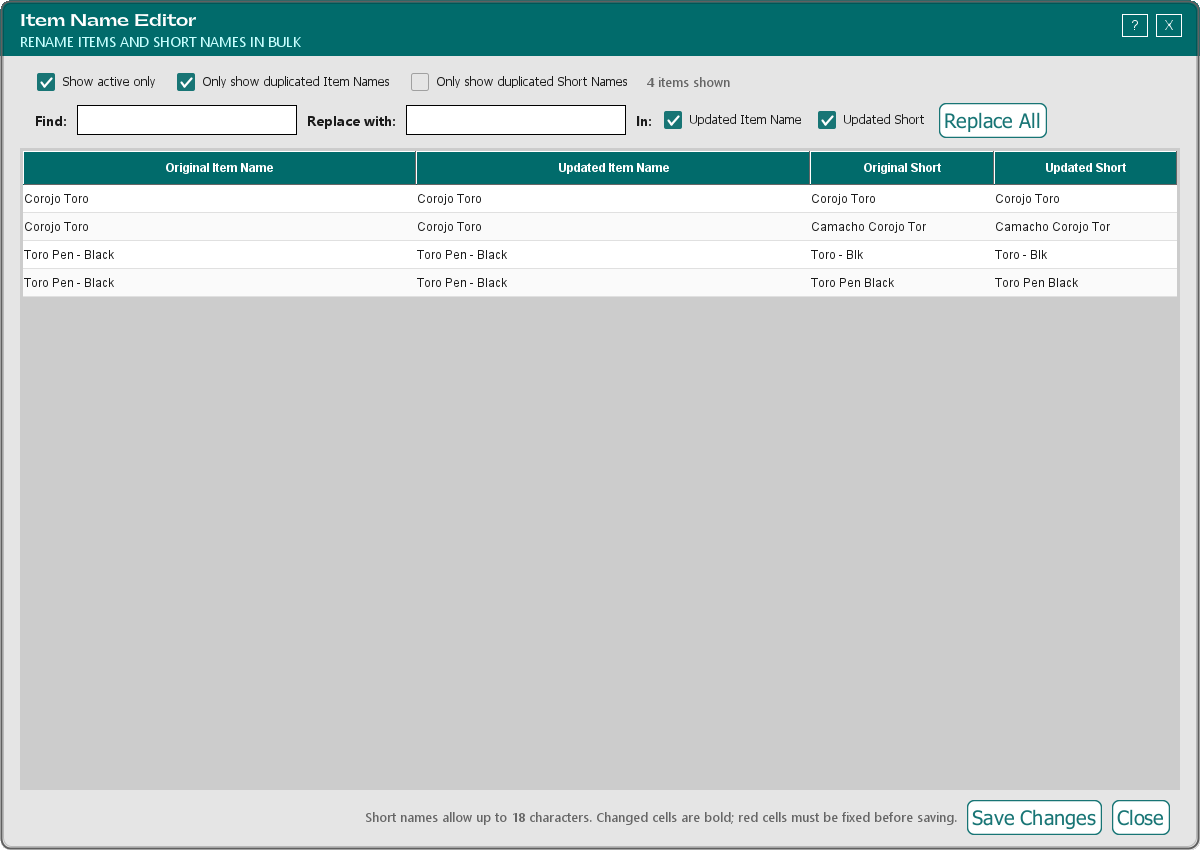
- Only show duplicated Item Names shows only items whose name is shared with at least one other item.
- Only show duplicated Short Names does the same for short names.
Tick both duplicate boxes and you only see items whose item name and short name are both shared. The duplicate boxes ignore capital letters and extra spaces at the ends, and they look at the Updated names. The list refreshes when you tick or untick a box and after you save, so an item you've renamed to something unique drops off the duplicate list then. The list is sorted by the updated item name, so duplicates sit next to each other.
Changing Names
One at a time: double-click a cell in Updated Item Name or Updated Short, type the new name, and press Enter.
Lots at once with Find and Replace:
Type the text you want to change in Find, and what it should become in Replace with. Leave Replace with empty to remove the text.
Next to In:, tick Updated Item Name, Updated Short, or both (both start ticked).
Click Replace All
TORO tells you how many item names and short names it changed. A few things to know about Replace All:
- It only changes the rows showing right now. Use the boxes at the top to narrow the list first if you only want to touch some items.
- It ignores capital letters when it looks, so finding "mad" also changes "Mad" and "MAD".
- It matches the text exactly as you typed it, anywhere in the name, including in the middle of a word. Finding "Rob" changes "Robusto" too. Check the list before you save.
- Nothing is saved yet.
Changed cells turn bold. A cell turns red when TORO won't accept it: an item name that's blank or longer than 200 characters, or a short name that's blank or longer than 18 characters.
Saving
Click Save Changes. The button shows how many items you've changed, for example Save Changes (12).
TORO asks "Save new names for 12 item(s)? The original names will be replaced." Click YES
TORO saves both names for every changed item and tells you how many it saved. Extra spaces at the start or end of a name are trimmed off.
If any changed item has a red cell, nothing is saved. TORO tells you how many items need fixing; fix the red cells and click Save Changes again. Red cells on items you haven't changed don't stop the save, but if you change an item whose short name is blank, give it a short name too.
There's no undo. The old names are replaced as soon as you save. If you rename something by mistake, rename it back here or in the item's details.
If your online store is connected, TORO sends the new names for the saved items to it.
Closing the window with changes you haven't saved asks whether to throw them away. Click NO to go back and save them.