YAY! Your internet is working again!
Let’s bring TORO back online. It is the same file as before — you just change the number back to 0.
- 1
Find the yellow folder at the bottom of the screen.
Along the very bottom of the screen is a row of small pictures. Find the one that looks like a yellow folder and click it one time — a window will open.Do not see a folder down there? On the keyboard, hold the Windows key(the key with the four-square window picture, to the left of the space bar) and press the letter E.
- 2
Click the address bar and type this, then press Enter.
Near the top of that window is the address bar. In the picture below it has a red box around it. Click inside it one time, type these exact letters, then press the Enter key: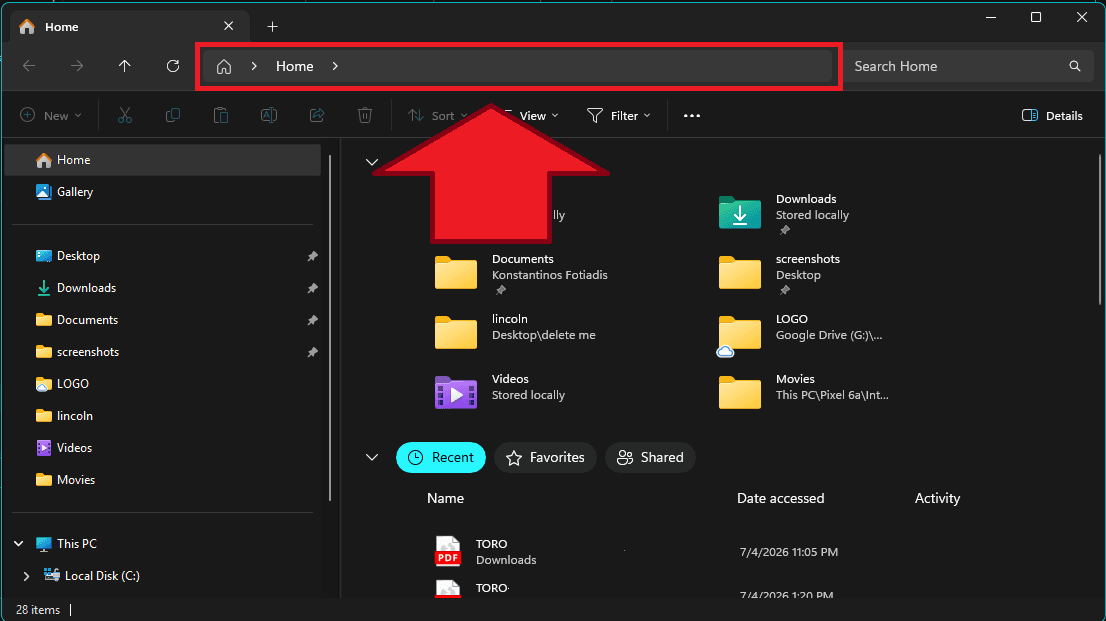 c:\hellasbae
 - 3
Find “internet” and open it.
A list of items appears. Find the one named internet. Point your mouse at it and click twice quickly (a double-click) to open it. It opens in a plain white notepad.internet - 4
Change the LAST line back to 0.
Look at the very last line of the file. It is a single number (right now it is a 1 or a 5). Change it to a 0. Do not change anything else. - 5
Save it the RIGHT way.
At the top-left, click the word File, then click Save.Do not just click the X to close.
THIS IS VITAL IN WINDOWS 11. The file does NOT save when you click the X in the corner. You must click File, then Save.
- 6
Close the file and restart TORO.
Close the notepad window, then start TORO back up. You are back online.
Still having trouble?
Send a message in your Store WhatsApp Support Group and we will get you sorted.
Welcome back online
Set the number back to 0, save the file the right way, and restart TORO. We are one message away if you need us.